How to Set Up Google Alerts to Monitor Your Business
Google Alerts is one of the most high-impact services for small to medium-sized businesses and it’s free. It takes fewer than ten minutes to set up properly and it provides actionable intelligence. How to Set Up Google Alerts for...
 Lynk
Lynk
Google Alerts is one of the most high-impact services for small to medium-sized businesses and it’s free. It takes fewer than ten minutes to set up properly and it provides actionable intelligence.
How to Set Up Google Alerts for Your Business (Step-by-Step Guide)
Ready to stop operating in the dark? Google Alerts is so simple that there is no excuse not use it.
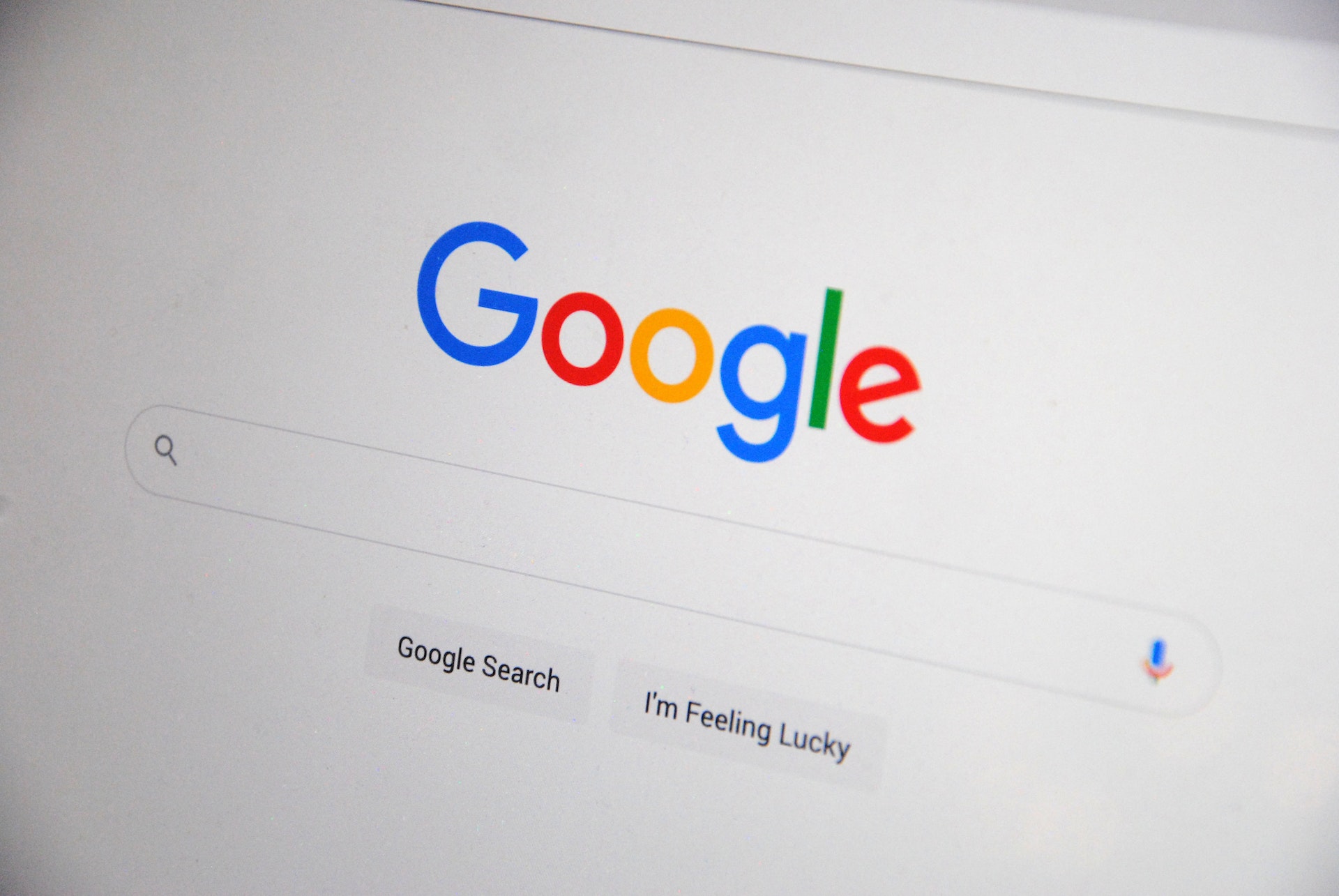
Step 1: Visit https://www.google.com/alerts
You must be logged into your business Google account, not your personal account. This way, your alerts are archived and routed appropriately.
Step 2: Begin With Your Core Brand Alerts
Type one of your most important keywords into the search box in order to create your alerts individually.
Start with these using types of alerts :
Use your exact business name such as “Bellas Bakery”. This will guarantee you are receiving results that include your exact name, not just “Bella” or “Bakery”.Add common typos such as: “Bela’s Bakery”, “Bellas Bakery”. Don’t overlook those references.Product or service names such as: “Vegan Chocolate Cake Bella’s”Your founder’s name or public face of the brand.Don’t be too general. General keywords will fill your inbox with white noise. Be precise.
Step #3: To customize your alert further, click “Show Options”
You don’t want to miss this step.
Click “Show options” beside each alert and set:
#1 Frequency:
As-it-happens: For brands that are reputation critical (or if you have had past PR problems).Daily or once a day: Good for most businesses – it’s a clean digest format that doesn’t overwhelm the inbox.#2 Sources:
All: Strongly recommended for full coverageNews or Blog Posts: If you Only Want Certain Types of Content#3 Language:
Your target language market such as English, Spanish, etc.
#4 Region:
Helpful for many local businesses. Use to limit the alert results to “United States” or “California”.
How many:
Only the best results: Spam and low-quality sites are filtered out.All mentions: Use only if you think you are missing niche mentions.Delivered to: You might set up an email alias such as alerts@yourbusiness.com and filter these to a folder for convenient reading.Step 4: Create the Alert & Repeat
Click on “Create Alert”. Then go back and configure your next keyword.
5-7 core alerts should be the target to start with. You can always add more later.
Step 5: Review & Refine Weekly
After your first week, review the alerts you have received and ask the question:
Are you receiving excessive amounts of junk mail? If so, include negative keywords by using the minus sign: “Bella’s Bakery” -jobs -careers -hiring
Are some sources necessarily irrelevant? If so, change Sources from “All” to “News or Blogs”
Keep a close eye on your alerts. Your alerts will need to change as your business changes.
Advanced Business Uses
Once you get a handle on the basics, consider adding the following:
1. Competitive Intelligence
Set an alert for:
“CompetitorCompany pricing”
“CompetitorCompany feedback”
This will provide advance notice of market changes and competitor information that you can learn from.
2. Tracking Trends and Industry Updates
Track emerging information before it becomes mainstream:
“2026 AI customer service regulations”
“California requires sustainable packaging”
“Tax consequences of working remotely”
Let these inform your content, product roadmap, or clients.
3. Backlink & PR Discovery
If someone has written about your product but has forgotten to include your link, Google Alerts allows you to discover that post and say “Thanks for the mention! Could you drop a link to our product page?” This is a tested white-hat SEO technique.
4. Crisis Prevention
Even one negative post can be a problem. In-the-moment alerts allow for immediate compassionate responses that address a potential public relations issues.
Final Thoughts
Google Alerts has some limitations:
It does not surveil private/social media channels (Facebook posts, comments on a private Instagram).It is unable to automatically track sentiment – you will have to interpret the results.However, Google Alerts is free of charge and quick to set up. Google Alerts also provides intelligence to safeguard your image, spot opportunities and saves your team hours each week.