
The Practical Guide to Google Analytics 4
Key Takeaways Are you getting the most out of Google Analytics 4 (GA4)? GA4 has been Google’s standard analytics platform for a few years now. The move from Universal Analytics (UA) was a major shift, but Google has continued...
 Troov
Troov
Key Takeaways
Google renamed “Conversions” to “Key Events” in 2024. The terms mean different things in GA4 and Google Ads, so getting the terminology right matters when comparing numbers across platforms. Every interaction in GA4 is event-based, with parameters providing the context behind what happened. Data-driven attribution is GA4’s default model, using machine learning to spread credit across all the touchpoints that led to a conversion. BigQuery export is free for standard properties and unlocks analysis that the standard reports can’t handle. DebugView is the fastest way to catch broken tracking before it becomes weeks of unusable data.Are you getting the most out of Google Analytics 4 (GA4)?
GA4 has been Google’s standard analytics platform for a few years now. The move from Universal Analytics (UA) was a major shift, but Google has continued updating GA4 itself along the way. One of the biggest changes came in 2024, when Google replaced “Conversions” with “Key Events” in 2024.
While some marketers might miss UA, there’s no going back.
This GA4 guide skips the history lesson and focuses on what you need to do in GA4 day to day, from proper setup to tracking key events (not conversions) and other impactful metrics.
What Is Google Analytics 4?
Google Analytics 4 is the current version of Google Analytics, and it provides web analytics on a level that allows marketers to effectively analyze important customer usage metrics, not just track traffic.
Before we get into the details, here’s a quick Google Analytics 4 overview.
Google Analytics 4 tracks the entire customer path across multiple platforms and leverages AI and machine learning to provide more detailed insights into how users interact with your website and app.
GA4 combines cross-channel measurement and AI-driven predictive analytics. It also operates under a privacy-first tracking framework designed for today’s privacy laws, such as the General Data Protection Regulation (GDPR) and the California Consumer Privacy Act (CCPA).
These features combine to give marketers a more complete view of how users interact with their digital properties than what UA offered.
How to Set Up Google Analytics 4
Many marketers ask me how to use GA4. Your setup process will depend on whether you’re tracking a website or an app (or both). I’ve broken down each option below.
Google Analytics for Firebase
Firebase is Google’s app development platform that helps you build and deploy apps and games. If you enable Google Analytics when creating a Firebase project, Firebase automatically links your app to a GA4 property.
If you’re working with an older Firebase project, you may need to link it to a GA4 property or complete Google’s upgrade process.
To upgrade your Firebase account to Google Analytics 4, follow these steps:
Log in to the Firebase console. Go to Analytics > Dashboard on the left panel. Follow any prompts to enable or upgrade GA for the project.Once linked, you can find app analytics in both the Firebase console and Google Analytics.
Setting up Google Analytics 4 from Scratch
If you’ve never used Google Analytics before or you want to set up a brand-new website, you’ll need to start from scratch:
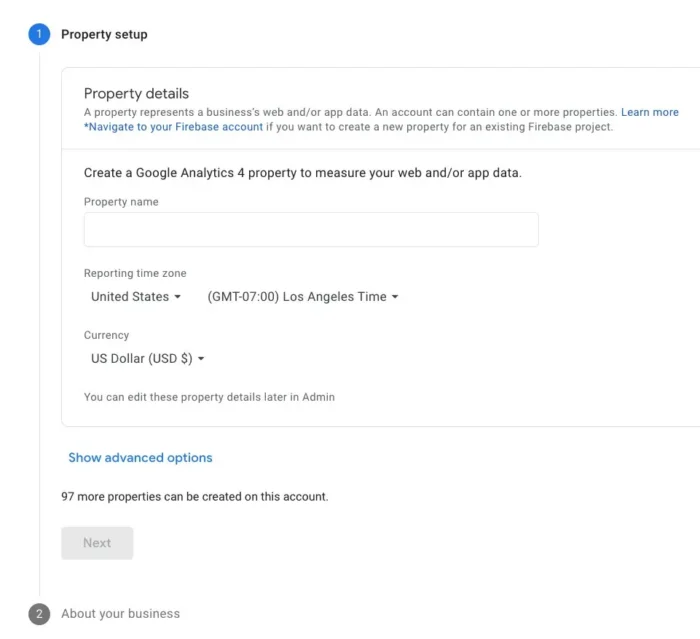
Create an Analytics account if you haven’t already by visiting https://analytics.google.com and opening Admin. Then click Create, and then Account (skip if you already have an account). In the Property column, click Create > Property. Enter a name for your new property, and select a time zone and currency. Select your industry category and business size. Select your business objectives (e.g., “Get baseline reports,” “Generate leads”). Click Create and accept the Terms of Service. Add a data stream (Web, iOS, or Android) to start collecting data.
Source: https://www.eridesignstudio.com/insights/set-up-a-google-analytics-4-property/
A data stream is a source of information that feeds your GA4 analytics property. It could be your website or your app. Google will guide you through adding each data stream.
Install With Google Tag Manager
For most marketers, Google Tag Manager (GTM) is the recommended installation method. GTM lets you deploy and update the GA4 tag (along with other marketing tags) without touching the site code whenever something changes.
To set up, create a free GTM account and add a container for your site. Google will give you two snippets of code to paste on every page (one in the <head>, one right after the opening <body> tag).
Once the container is live, create a Google tag inside GTM using your GA4 Measurement ID and set it to fire on all pages. Publish the container to push your changes live.
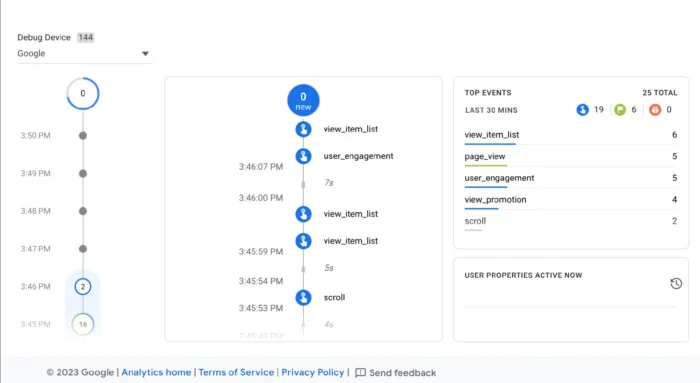
Verify With DebugView
After setup, use DebugView (found under Admin) to confirm your events are firing correctly. It shows real-time event data from a single device with debug mode enabled, which beats waiting for reports to populate. Skipping this step is a common way for broken tracking to go unnoticed for weeks.
Now that your setup is verified, let’s look at what really makes GA4 tick.
Understanding the GA4 Data Model
Understanding GA4 comes down to one core concept: Any custom action you can define (clicks, scrolls, and purchases) is viewed as an event.
While it may seem confusing, classifying events this way enables GA4 to provide a single, flexible structure for all your important metrics.
Each event carries parameters that add context. A purchase event, for example, includes parameters like revenue, item name, and transaction ID. Parameters are where the useful details live, and you can attach up to 25 parameters to any event.
GA4 groups events into four categories:
Automatically collected: Things GA4 tracks the moment you install it Enhanced measurement: Extra web interactions you toggle on in the data stream settings Recommended: Predefined names Google suggests for common actions like sign_up or login Custom: Anything you define yourself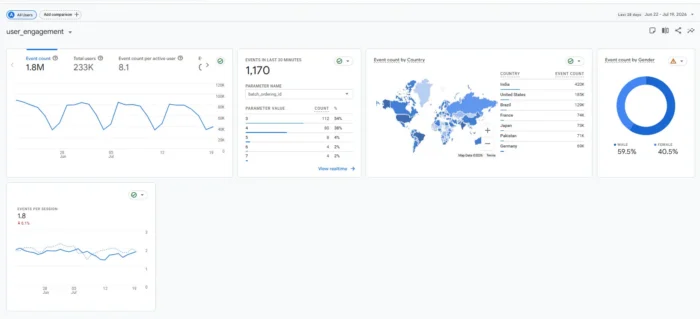
Sessions still exist in GA4, but they’re derived from events, like a page view or opening your app, rather than the other way around.
A session starts when a session_start event fires and ends after 30 minutes of user inactivity, but there’s no limit to how long they can last while active.
Key Events in GA4 (Formerly Conversions)
As I mentioned earlier, Google renamed Conversions to Key Events throughout GA4 in March 2024.
A Key Event is any event you mark as important to your business, whether that’s a purchase, a form submission, a newsletter signup, or a demo request. This terminology change may be one of the biggest changes introduced by GA4 and could trip you up if you’re not careful.
The rename wasn’t cosmetic. Google separated the terms to reduce confusion between platforms.
Key Events now lives inside GA4, and Conversions is reserved for Google Ads. The two are related (Key Events can be imported into Google Ads and become conversions there), but they’re counted and reported separately. Overlook this distinction, and you could end up misreading your marketing data.
On most web properties, purchase is the primary event that GA4 automatically marks as a key event. Most other events will need a manual toggle. However, if you connect an app property, you should see all pre-defined Key Events.
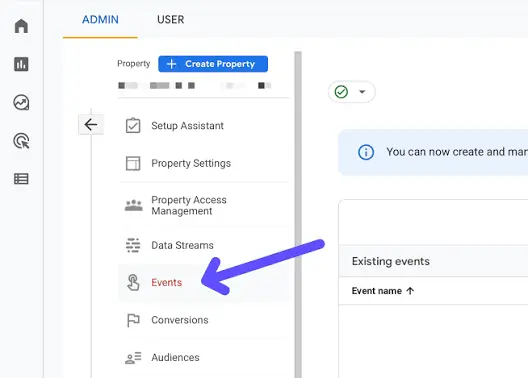
To mark an existing event as key, go to Admin > Data display > Events. Find the event in the list and click the star icon next to it. To create a new event and mark it as key in one flow, navigate to the same Events menu. Click Create event, and enter the new event’s name, then click the toggle next to it to mark it as a key event.
After that, select your Default key event value and Counting method, and click Create.
You’ll find key event data in the standard reports (Reports > Engagement > Key events) and as a column in most acquisition reports.
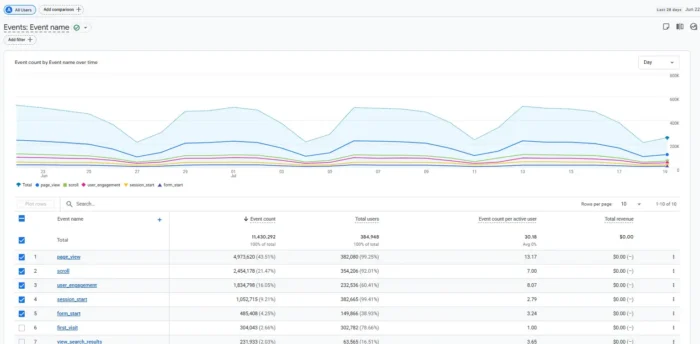
One thing to watch for: The Advertising workspace still uses Conversions language because that section pulls data from linked Google Ads accounts, where the term still applies. It’s the same underlying action, but a different label depending on where you are in the interface.
It’s important to keep this language straight as you begin to pull reports.
The GA4 Reports That Marketers Actually Use
GA4 has more reports than most marketers will ever need, but don’t feel overwhelmed. I’ll cut through the noise in this next section of our GA4 guide and give you four foundational reports for the bulk of your day-to-day analysis.
Acquisition Reports
The Acquisition reports show where your traffic comes from, broken down by default channel groupings like Organic and Paid Search, Direct, Referral, and Organic Social.
I think your two most important reports here are User Acquisition (how users first found you) and Traffic Acquisition (session-level sources). Both give insight into which channels are bringing your audience to you and deserve more attention.
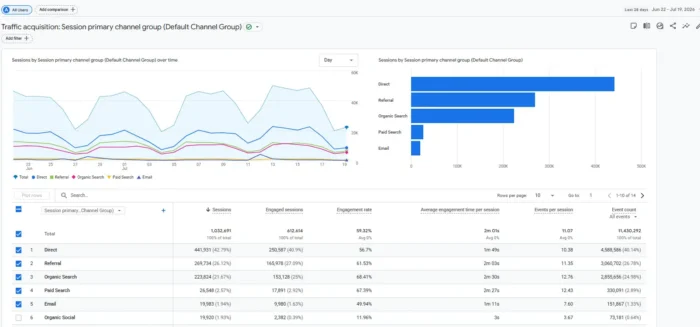
The data-driven attribution model may change how channels are compared in your report. You can switch models in Admin > Data display > Attribution settings if the default doesn’t fit how your team makes decisions.
Engagement Reports
Engagement reports are where most day-to-day content analysis lives. To find your top-performing pages, open Reports > Engagement > Pages and screens, and sort by views or engagement rate.
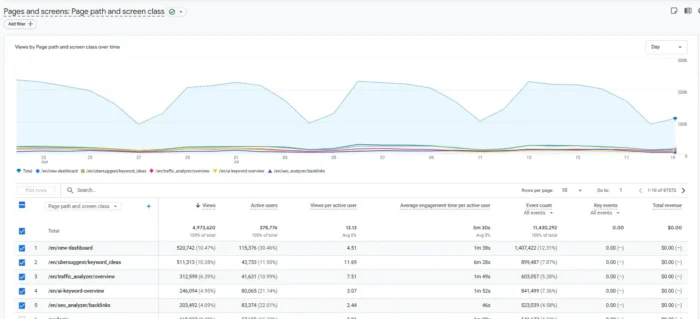
To truly understand this report, you have to understand that Google’s benchmark of an engaged session is any session that lasts more than 10 seconds, includes at least one key event, or has two or more page views. GA4’s engagement rate is built from this count, and bounce rate in GA4 is calculated as its inverse.
Monetization Reports
Monetization reports cover revenue data, such as product performance and which promotions are bringing in new customers.
The report comes with pre-made summary cards that can break down revenue and purchaser figures, and even provide insights by cross-referencing revenue per purchaser.
You can also drill down further with views like Ecommerce Purchases (transactions, revenue, and top items) and In-App Purchases (for mobile apps).
Ecommerce events aren’t collected automatically. You (or your developer) have to implement events such as add_to_cart, begin_checkout, and purchase with the correct parameters before any data shows up in these reports. If you’re not seeing any data in your Monetization dashboard, skipping this implementation step is almost always why.
Explorations
Explorations are for questions that the standard reports can’t answer. Three versions of these reports that may be useful are:
Funnel exploration: Where users drop off in a defined marketing funnel Path exploration: What users do before or after a specific event Segment overlap: How two or three audiences intersect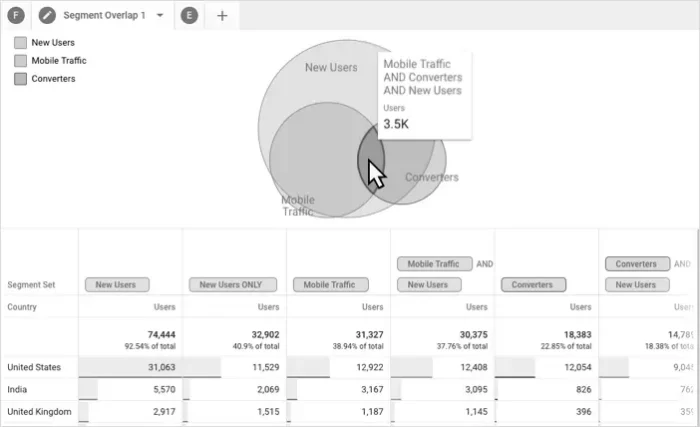
Use standard reports for recurring monitoring and Explorations for one-off analysis. When you want an answer to a question the team’s never seen before, it’s time to dig into Explorations reports.
Building Audiences in GA4
Audiences in GA4 are user segments grouped by demographics or Key Events. You can use them for analysis in reports or push them to linked ad platforms for targeting and exclusion.
There are two main types:
Predictive audiences: These use GA4’s machine learning to group users based on future behavior using predictive metrics, such as purchase probability and predicted revenue. Your property needs enough historical data to train the models before these audiences appear. You may start to see predictive tools like these popping up across platforms. Used well, they can guide both your traditional SEO and AI SEO strategy. Custom audiences: These let you define the criteria yourself using the audience builder at Admin > Audiences > New audience. Conditions can be based on events, event parameters, user properties, dimensions, or metrics, with a limit of 10 conditions per audience.Any audience can be published to a linked Google Ads account for targeting or exclusion. Just remember that GA4 audiences don’t populate in real time, so a user may not appear for 24 to 48 hours after initially meeting your audience criteria.
Attribution in GA4
An attribution model is a rule (or a data-driven algorithm) that determines how conversion credit gets distributed across the touchpoints a user encounters before triggering a key event. If someone clicks a paid search ad on Monday and then converts through organic search on Friday, the attribution model decides which channels get credit and how much.
GA4’s default model for event-scoped dimensions is data-driven attribution, which uses machine learning to distribute credit fractionally based on which touchpoints influenced the conversion.
The other two options Google gives you are “Paid and organic last-click” and “Google paid channels last-click.” You can change your attribution model by going to Admin > Data display > Attribution settings. Switching recalculates how credit is spread across channels, so it may change what your reports say.
Beyond the settings, two attribution reports are worth exploring. Both live in the Advertising section: Attribution paths shows the full sequence of touchpoints leading to a Key Event and Attribution Models compares how credit gets distributed across different models.
BigQuery Export: GA4’s Most Underused Feature
This Google Analytics 4 guide wouldn’t be complete without covering BigQuery export. This feature lets you export your raw GA4 event data to Google Cloud Data Warehouse, where you can query it using structured query language (SQL).
Standard GA4 properties can export up to 1 million events per day for free to a BigQuery sandbox, and most marketers should be taking advantage.
BigQuery is powerful because you can join your raw GA4 data with customer relationship management (CRM) data, ad spend, or anything else you can put into a table, which opens up analyses that aren’t possible in the standard reports. It also stores every event and parameter from your GA4 account for as long as you keep the database.
Any time you need custom attribution windows or multi-source reporting is a good time to use BigQuery. An example use case might be joining BigQuery event data with your CRM to see which acquisition channels bring in customers with the highest lifetime value.
Common GA4 Mistakes to Avoid
Even a well-configured GA4 property can lead you to bad decisions if the data is read incorrectly.
Here are some common missteps to guard against as you’re gathering and interpreting your data:
Confusing Conversions and Key Events. They’re reported and used differently in GA4 and Google Ads, so using the terms interchangeably could lead to confusion when the numbers don’t match across platforms. Reading acquisition reports without checking attribution settings. Attribution models each distribute credit differently, so the model you’re using shapes how channel performance appears. Skipping DebugView after making changes. Any new event or setup change should be verified before you rely on it. DebugView lets you see if the proper triggers are firing, catching problems before they become weeks of broken data. Mixing up sessions and engaged sessions. Engaged sessions are a subset defined by 10-plus seconds, a Key Event, or two or more page views. Treating them as interchangeable will misrepresent your engagement picture. Using standard reports for questions that need Explorations. Standard reports are pre-aggregated. Deeper analysis with custom segments or path exploration belongs in Explorations. Not linking Search Console. Without the link, organic search query data and landing page metrics aren’t available in GA4’s Search Console reports.FAQs
What is GA4 in marketing?
GA4 is Google’s current analytics platform for tracking user behavior on websites and apps. In marketing, it’s what most teams use to measure traffic sources, campaign performance, and on-site behavior.
When did GA4 launch?
GA4 launched in October 2020, when Google announced it as the successor to Universal Analytics.
Does GA4 use cookies?
Yes. GA4 uses first-party cookies (like _ga) to identify unique users and sessions. Cookie behavior can be controlled through Consent Mode.
Is GA4 correctly installed?
Use DebugView (under Admin > Data display) to verify events are firing after setup. Google’s Realtime report also helps confirm data is flowing.
Conclusion
My goal with this GA4 guide was to cover more than theory or technical instruction. I wanted to show you the mechanics of how GA4 works for marketers in 2026.
GA4’s event-based data model, paired with predictive audiences, gives you a level of insight Universal Analytics never really offered.
The catch is that neither one delivers value automatically. You have to configure things correctly and know which reports to pull for which questions.
If you need help with custom reporting or more complex functions, such as using GA for SEO measurement or keyword research, contact my team at NP Digital. They’re some of the best in the business when it comes to using GA4, and they’re more than happy to help.