How to Analyze Your Backlinks With the Ubersuggest Backlink Checker
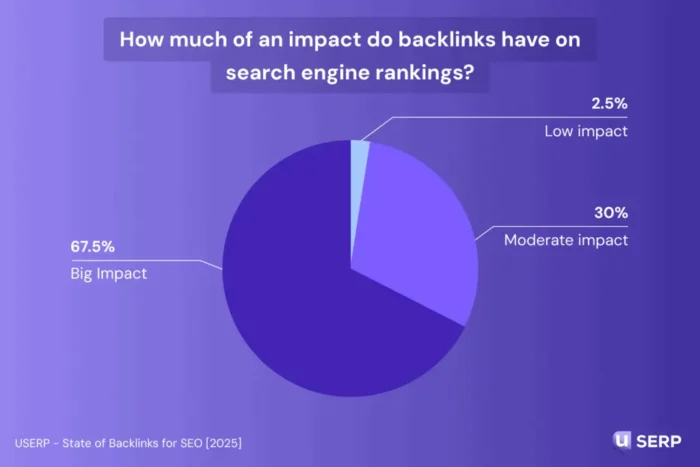
Key Takeaways How important are backlinks to your online business? According to research from uSERP, 67.5 percent of the SEOs interviewed believe they have a ‘big impact’ on their search engine rankings. Source: https://userp.io/link-building/state-of-backlinks-for-seo/ An overwhelming majority (85 percent) believe backlinks...
 Lynk
Lynk
Key Takeaways
More than two-thirds of SEOs (67.5 percent) say backlinks have a big impact on search rankings, and 59 percent expect that influence to grow. The Neil Patel Backlink Checker now lives inside Ubersuggest, so your backlink analysis and the rest of your SEO research happen on one platform. The Backlinks Overview report gives you a site’s domain authority, total backlinks, referring domains, and performance over time at a glance. Backlink Opportunity lets you compare your profile against up to five competitors and identify specific sites worth pursuing for your own outreach. Pair backlink data with the Traffic Overview and Top Pages reports to see which of your URLs earn the most links, then create more content in that direction.How important are backlinks to your online business?
According to research from uSERP, 67.5 percent of the SEOs interviewed believe they have a ‘big impact’ on their search engine rankings.
Source: https://userp.io/link-building/state-of-backlinks-for-seo/
An overwhelming majority (85 percent) believe backlinks have a major influence on their brand authority, while 47.5 percent say building backlinks is every bit as important as content strategy. Additionally, 59 percent say they expect backlinks to have a greater impact in the future.
Plenty of other surveys demonstrate the importance of backlinks, which leads me to a question: Given how pivotal backlinks are to your online success, how do you view them, and how do you track your site’s performance?
Fortunately, the Neil Patel Backlink Checker is now part of Ubersuggest. It’s a top-notch backlink tool that helps you understand how to generate quality backlinks and analyze your site’s performance. It all lives within the platform you’re already using to conduct the rest of your SEO research.
Let’s walk through how the tool works and the best ways to use it for your business goals.
How Ubersuggest’s Backlinks Tool Works
When you first log in to Ubersuggest, look at the left-hand menu. You’ll see all features organized by category. Scroll down to the Link Building section, and click Backlink Overview.
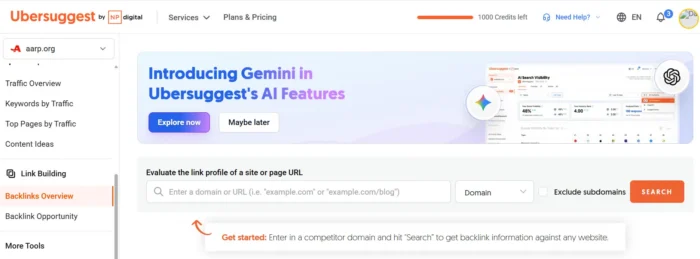
Enter the domain whose backlinks you want to analyze, and then choose the type of report you want. There are two types of reports you can pull up:
URL: This report pulls backlink information only for that specific URL. Domain: This report pulls all backlink information for that domain, including any subdomains. This option typically gives you the highest backlink count.Hit Search, and Ubersuggest will get to work.
Once the search completes, you’ll see a backlinks report that shows you the Domain Authority and backlink profile at a glance. You’ll even be able to see the domain’s backlink performance over time.
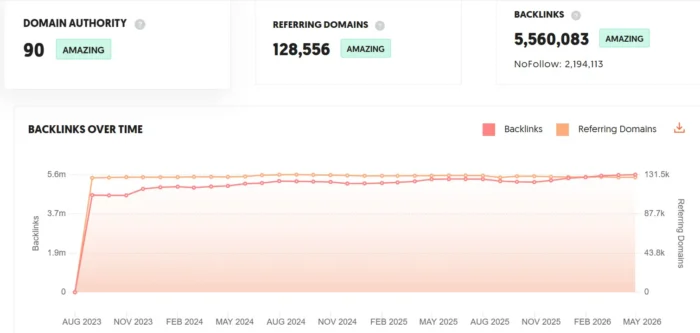
This report quickly gives you a high-level overview of a site’s backlink performance. Here, you’ll see the number of backlinks you have, and you can analyze their Domain Authority.
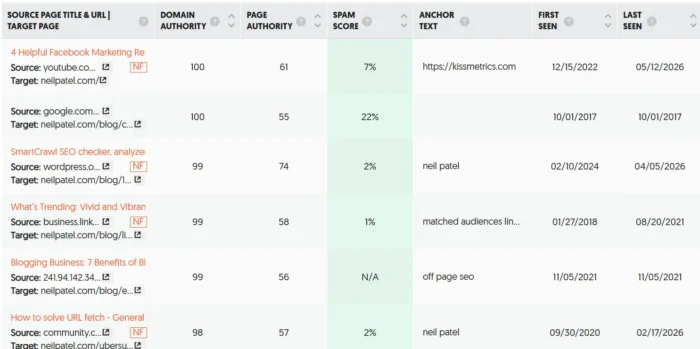
As you scroll down, you’ll see a list of individual backlinks. This list shows the linking site’s Domain Authority and Spam Score, helping you instantly filter between good and bad links and spot broken backlink strategies.
You’ll even see the anchor text the linking site has used to link your content. This is a good way to gauge whether links are just random and spammy or actually provide searchers with helpful guidance.
Backlinks Overview alone provides a lot of data, but the Neil Patel Backlink Checker can do more. Dig into its link analysis capabilities, and you’ll see how deeper data and granular metrics enable more complex strategies.
Link Analysis From Your Backlinks Report In Ubersuggest
The list section of our backlinks report is where we can work from to do our more in-depth analysis. By default, our list of URLs shows one link per domain to make the report more useful. That way, if someone links to you 100 times, you’ll see the best link from that site.
If you want to see all 100 links coming from the same site, unclick the “one link per domain” button under the Advanced Filters tab.
If the URL or domain you just pulled up has a lot of backlinks, you’ll see thousands and thousands of links and can comb over each one during your analysis.
Here’s a deeper look at the data you’re provided for each link:
Source Page Title & URL: What is the title of the page linking to the URL/domain you looked up? Target Page: This is where the link is pointing to. If you look up a URL, it will point to that specific URL. If you look up a domain, you can see where its link is pointing to on that domain. Domain Authority: How authoritative is the linking site? The higher the number, the better. Page Authority: How authoritative is the linking page? The higher the number, the better. Spam Score: A Moz score that shows whether a link is spammy. The higher the percentage, the more likely the link is spam. Anchor Text: Does the link contain any keywords? You can easily see this through the anchor text column. First Seen: When did we first find this link? Last Seen: When did we last crawl and find this link?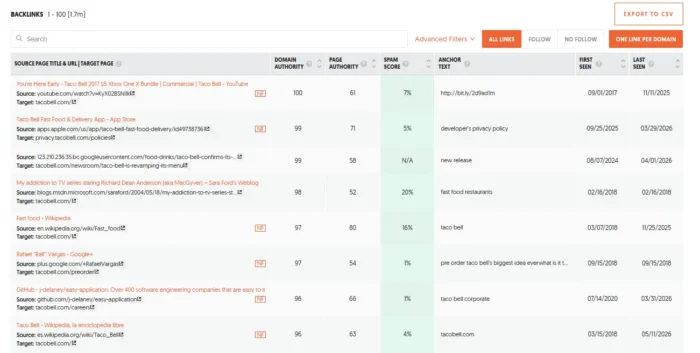
When you are looking for specific link opportunities, especially when doing competitor analysis in Ubersuggest, you may want to use the advanced filters to find the best link opportunities.
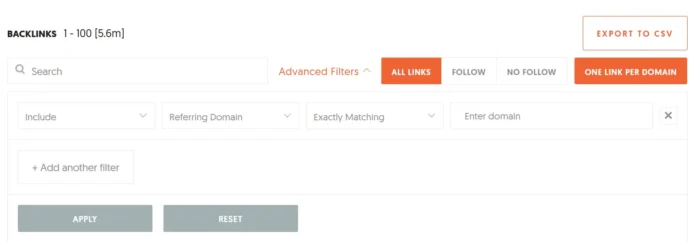
Here’s how the advanced filters work:
Search Box: In the box, you can type in any keyword or phrase, and it will pull any URLs, titles, or anchor text that contain any of those words. That way, you can find what you are looking for faster. Zone: If you want to only include or exclude links with certain domain extensions, such as .net, .com, .com.br, .co.uk, etc., you can do so with zone filtering. Referring Domain: If you want to include or exclude links coming from a specific domain, this is the filtering option you can use. Anchor: If you want to find links by a specific anchor text, or exclude links with a specific anchor text, you can do so with this filtering option. New/Lost Toggle: Filter links by whether they were newly gained or recently lost. Link Type Toggle: Filter results to include all links, follow links, or nofollow links.Finally, if you want to slice and dice the data in more advanced ways, you can always click the Export to CSV button and play around with the data if you’re a spreadsheet wizard.
Finding Backlink Opportunities With Ubersuggest
Once you take a look at your backlink profile in Ubersuggest, you can navigate to Backlink Opportunity on the left-hand menu to start shaping your strategy.
On this page, you enter your target domain and run a comparison report against up to five of your competitors.
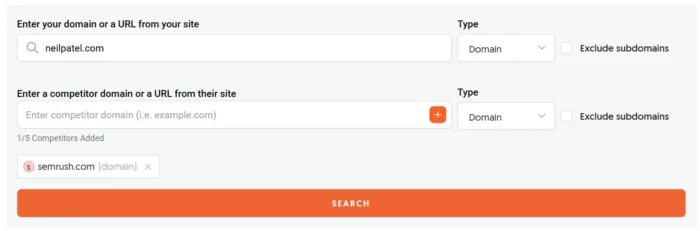
As with the Overview report, you can toggle your search type between Domain and URL. The URL option searches for the exact URL and compares it against the exact URL of a particular competitor page. This helps take a closer look at a page’s performance against a competitor for the same keyword or topic.
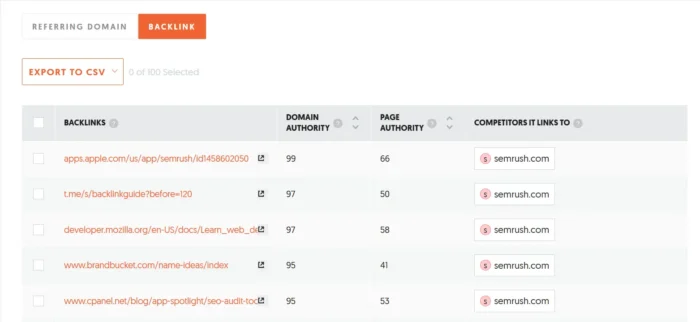
Once you hit Search, you get a list of backlinks ranked highest to lowest by domain authority. You’ll also see the referring domain and which of your competitors they’re linking to.
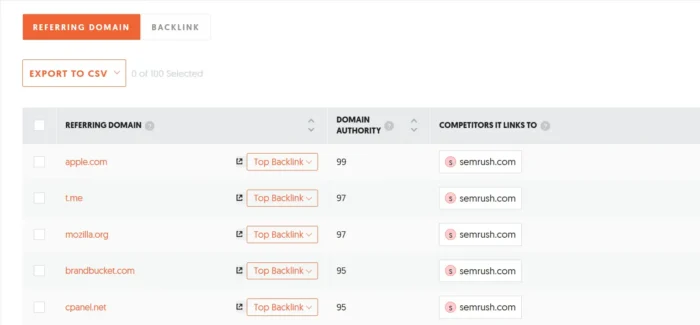
You have the choice of viewing this report by Referring Domain or Backlink. Switching to the Backlink view gives you more granular insight into each link. It also reveals each backlink’s Page Authority score, helping you evaluate link quality and prioritize outreach to strong pages within strong domains.
Strategize Smarter by Analyzing Traffic
Under the Traffic Overview heading, you get organic keywords and monthly organic traffic, domain authority, and backlinks, including nofollow links.
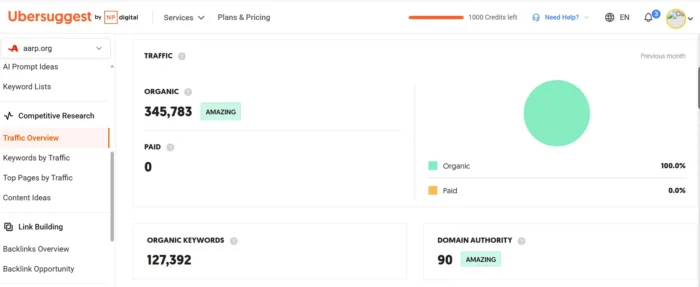
Ubersuggest also has a Top Pages by Traffic feature.
If you aren’t familiar with the Top Pages report, it shows the most popular pages for any domain.
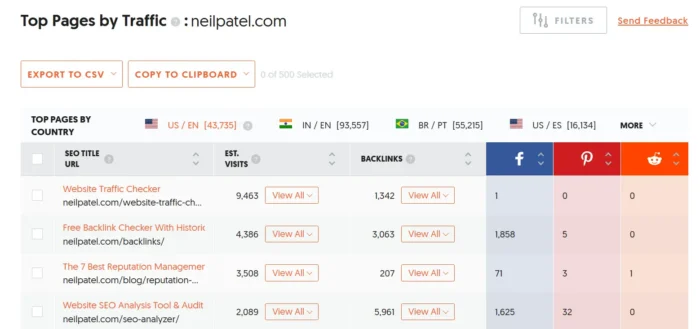
You’ll notice that you can see how many visitors go to each URL, and if you click on View All under Est. Visits, you’ll see a list of keywords that are driving traffic to that URL.
If you click View All under backlinks, you will see all the URLs linking to that page.
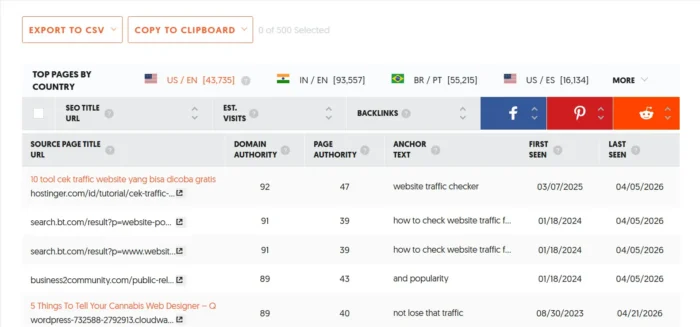
Using this feature, you can see which types of pages link to your content. You can also see the anchor text they’re using and visit the page to get an idea of the topics being discussed around your brand.
That’ll give you an idea of which sites to target for backlinks. You can even use this data for general information on which business verticals find your content useful (in case you need to “backdoor” competitive search terms or topics).
FAQs
How many backlinks does my website have?
The exact number depends on your domain’s age, content, and outreach. Run your URL through Ubersuggest to see the number of backlinks and key backlink profile performance metrics in seconds.
How do I find backlinks to my website?
Use Ubersuggest or Google Search Console. Both pull your full backlink profile, including the anchor text and authority score, so you can see which links carry real weight.
How do I check the backlinks of my competitors?
Drop a competitor’s URL into Ubersuggest’s backlinks report. You’ll get a list of every site linking to them, which doubles as a target list for your own outreach.
How do I disavow backlinks?
If you find spammy or bad links pointing to your site, submit them to Google via the Disavow Tool. Use it sparingly, though, as removing legitimate links can tank your rankings.
Conclusion
I hope you enjoyed the full tour of the Neil Patel Backlink Checker. Now, Ubersuggest users can access it as one of the platform’s many features, making it so much easier to do all your backlink and other SEO research in one place.
You can look up as many domains and URLs as you want, whether you’re checking in on your site’s performance or tracking competitors with Ubersuggest.
Head over to Ubersuggest and start typing in domains and URLs. I put a lot of time, energy, and money into building this tool, so I hope you enjoy it and use it to see some real results in your business.