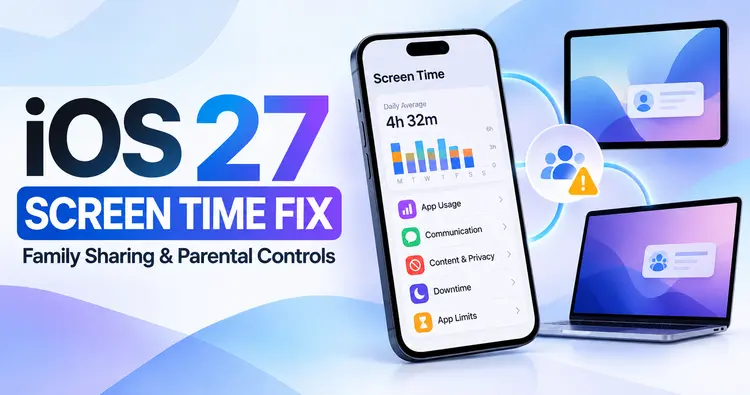
iOS 27 Screen Time Not Working? Family Sharing Fixes

iOS 27 Screen Time not working? Learn how to check Family Sharing devices, update eligible iPhones and iPads, and handle older devices safely.

iOS 27 Screen Time Not Working? Family Sharing Fixes
iOS 27 Screen Time troubleshooting guide for Family Sharing and parental controls

Is Screen Time not working after updating to iOS 27? If your family uses multiple iPhones, iPads, or Macs, a change to parental controls can be confusing. A parent may see an update requirement, a child's device may not appear as expected, or a familiar restriction may seem to behave differently.

The important thing is to identify the actual problem before changing your family setup. An update requirement does not necessarily mean Screen Time is broken, and an older device does not automatically need to be removed from Family Sharing.

For background on the new controls, see our guide to Build a Focus System: How to Protect Attention in a Distracting Digital Day. This guide explains how to check your family's devices, troubleshoot Screen Time safely, and decide what to do when one device cannot run the newest operating system. It also covers common misunderstandings, account problems, syncing delays, and situations where contacting Apple Support is the safest option.

Quick answer: First check whether all eligible family devices have compatible software. Next confirm that the correct Apple Accounts are signed in and that the child's Screen Time settings are being managed through the intended Family Sharing group. If an older device cannot be updated, review Apple's guidance for continuing with existing parental controls rather than resetting your family configuration.

Why Screen Time May Appear Broken After iOS 27

Screen Time is not a single setting. It includes app limits, downtime, content restrictions, communication controls, usage reports, and family-management features. Those capabilities interact with account permissions, operating-system versions, and the devices associated with each family member.

When a major software update changes how parental controls work, some families may encounter an upgrade prompt or an unexpected difference between devices. That can feel like a malfunction even when the system is waiting for a supported update or configuration change.

Other problems have less to do with the new software. They may involve a child using a different Apple Account, a device not connected to the internet, a restriction that was never enabled, or a misunderstanding about which parent has permission to manage a setting.

These causes require different solutions. Updating software may resolve a compatibility requirement, but it will not correct an account signed into the wrong family group. Likewise, repeatedly changing app limits will not help if the parent is managing the wrong device.

Start Here: A Safe Screen Time Troubleshooting Checklist

Before attempting a reset, work through these checks in order. They are designed to identify common issues without removing accounts, erasing devices, or deleting existing restrictions.

  1. Identify the symptom. Is Screen Time missing, showing an update prompt, failing to sync, or not enforcing a specific limit?
  2. Check the parent's device. Confirm the software version and verify that the expected Apple Account is signed in.
  3. Check the child's device. Confirm the software version, account, and network connection.
  4. Review Family Sharing. Make sure the child is listed in the correct family group.
  5. Check the individual restriction. Confirm that Downtime, App Limits, or Content & Privacy Restrictions are actually enabled.
  6. Allow time for syncing. After changing settings, reconnect devices to the internet and check whether the update appears.
  7. Consult Apple Support. If the device reports a compatibility requirement, follow the current official instructions for that situation.

Record the original settings before changing them. Screenshots of configuration screens can help you compare the results after troubleshooting, but avoid sharing account details or children's private information publicly.

Fix 1: Check Which Family Devices Need an Update

Software compatibility is one of the first things to investigate when new parental-control options are unavailable. Apple provides guidance on updating family devices to use newer parental-control experiences. The requirements can differ depending on the operating system and device model.

On a supported device, open Settings and review the Family section. Apple may provide a view showing family devices and their update status. Follow the on-screen guidance for your software version rather than assuming that every device must support the same release.

Check each eligible iPhone and iPad through Settings, General, Software Update. On a Mac, use the software update controls in System Settings. Before updating, ensure that the device has sufficient storage, a reliable connection, and a current backup.

Do not force an unsupported upgrade. Older devices may have reached their final supported operating-system version. That does not automatically mean they must be replaced or removed from the family.

Apple's official family-device update guidance should be the reference point for the newest requirements.

Fix 2: Verify the Correct Family Sharing Group

A family organizer can invite members to a Family Sharing group, while parents or guardians may have permission to manage a child's settings. Problems can arise when a device is signed into an unexpected account or when a parent assumes they have a management role that has not been assigned.

On the parent's iPhone, open Settings and select Family. Confirm that the child's account appears. Review the available parental-control options and ensure that the intended adult has the appropriate role.

Then check the child's device. Confirm that it uses the expected Apple Account. Do not sign out as a first troubleshooting step. Signing out may affect access to synced content and other services, so verify the configuration before making account changes.

If the family member is missing, determine whether the device is signed into the wrong account or whether the invitation or family membership needs attention. Apple Support can help with account-specific situations that are not clear from the device interface.

Fix 3: Confirm Screen Time Is Enabled for the Child

It is possible for Family Sharing to work while an individual Screen Time restriction is disabled. Open the child's Screen Time settings from the parent's device and inspect the controls relevant to the problem.

If the issue concerns app usage, check App Limits. If it concerns overnight access, inspect Downtime. If it concerns website restrictions or purchases, review Content & Privacy Restrictions and the applicable subsettings.

Do not assume that enabling one Screen Time feature enables all the others. A device may display usage reports without enforcing the restriction a parent expected.

For a specific app limit, verify that the correct app or category was selected and that the configured duration matches your intention. For Downtime, review the schedule and any exceptions. Where applicable, inspect the list of apps allowed during restricted periods.

After making a change, test the result on the child's device. A practical test is more useful than relying only on what the settings screen appears to show.

Fix 4: Check Internet Connectivity and Syncing

Family-management changes may need to reach another device before they take effect. If the parent's iPhone shows a new restriction but the child's device does not, first confirm that both devices have working internet connections.

Open a website or use another network-dependent function on each device to check connectivity. If the connection is unreliable, resolve that issue before repeatedly editing Screen Time settings.

After restoring connectivity, reopen the relevant settings and allow time for changes to synchronize. You can also restart a device as a basic troubleshooting measure, provided no software update or backup process is currently underway.

Do not repeatedly toggle major restrictions while waiting for synchronization. Multiple rapid changes can make it difficult to identify which configuration is actually being applied.

Fix 5: Handle Older iPhones and iPads Carefully

One of the most frustrating situations occurs when a family owns a mixture of newer and older Apple devices. A child's iPad may still work perfectly for schoolwork and entertainment even though it cannot install the newest operating system.

Before replacing the device, distinguish between access to the newest parental-control experience and continued use of existing Screen Time capabilities. Apple's documentation may provide a way to keep using earlier controls when a family cannot update every device.

Check the exact model and software version, then review Apple's compatibility instructions. If the older device remains supported for your intended restrictions, there may be no immediate reason to purchase new hardware.

However, some newly introduced capabilities may require newer software. An older device may continue to use existing controls without gaining every new feature. That distinction should guide your decision.

If your family depends on a particular safety setting, verify its behavior directly on the older device. Do not assume that a restriction remains active merely because the device still appears in Family Sharing.

Fix 6: Review Downtime and App Limits Separately

Parents often describe a Screen Time problem as "limits not working," but several different settings may be involved. Downtime, App Limits, and Always Allowed apps serve different purposes.

Downtime is designed around a scheduled period. Check the configured start and end times, the relevant days, and any exceptions. A schedule that crosses midnight can be especially confusing when reviewing settings quickly.

App Limits apply to selected apps or categories. Make sure the intended apps are included and the time allowance is correct. If a child uses multiple devices, inspect the settings that govern how usage is counted across devices.

Always Allowed settings can permit certain apps or contacts during restricted periods. If a specific app remains available, check whether an exception explains the behavior before concluding that the limit failed.

Test each setting independently. Changing several controls at once makes troubleshooting harder and can accidentally remove restrictions that were already working.

Fix 7: Check Content and Privacy Restrictions

Content & Privacy Restrictions cover a different set of concerns from general app-usage limits. Depending on the available controls, parents may manage access to certain content, purchases, account changes, and other device functions.

Open the relevant Screen Time section and verify that the main restriction switch is enabled. Then review the specific category related to the issue. For example, a website-access problem requires a different setting from an app-installation restriction.

Some restrictions may behave differently depending on the app, content provider, or device. Test the actual activity you intend to restrict, and use Apple's current support instructions for the specific feature.

If a child can access something that should be blocked, do not rely solely on the presence of a checkmark in Settings. Confirm whether the restriction applies to that device and software version.

Fix 8: Review Screen Time Passcode Problems

A Screen Time passcode is separate from the device's normal unlock passcode. Confusing the two can prevent parents from changing restrictions or create the impression that Screen Time has stopped responding.

If you cannot change a setting because a passcode is requested, first determine which passcode the system expects. Do not make repeated guesses or use third-party bypass tools.

Apple provides official guidance for managing or resetting a Screen Time passcode in supported situations. Follow those instructions using the appropriate Apple Account and family-management permissions.

Be especially cautious with websites that promise to remove parental controls instantly. Such services may request sensitive account information, install untrusted software, or encourage unsafe device changes.

What Not to Do When Screen Time Stops Working

Some troubleshooting advice online jumps directly to drastic actions. Those steps can create more problems than they solve, particularly when several family members share purchases, subscriptions, or other Apple services.

Do Not Immediately Remove the Child From Family Sharing

Family membership can affect multiple services. Removing a member is not a routine first step for diagnosing a syncing delay or software compatibility message.

Do Not Erase the Device Without a Clear Reason

A factory reset can be disruptive and may not address the underlying problem. Confirm that you have a complete backup and a documented recovery plan before considering any destructive action.

Do Not Disable All Restrictions Permanently

Turning off every parental control may temporarily hide the symptom while leaving the original issue unresolved. Make targeted changes and record what you changed.

Do Not Trust Unsupported Compatibility Claims

Different Apple devices receive different software updates. A guide that assumes every iPhone, iPad, and Mac can run the newest version is not a reliable basis for family safety decisions.

Do Not Share Sensitive Family Account Details

When seeking help online, avoid posting children's names, Apple Account addresses, device serial numbers, recovery information, or screenshots containing private messages.

Screen Time vs Third-Party Parental-Control Apps

Some families consider installing a separate parental-control service when built-in restrictions become difficult to manage. That may be reasonable for particular needs, but a new subscription should not be the first response to a temporary software problem.

Start by identifying which capability is missing. You may need basic app limits, content filtering, location-related family features, or more detailed reporting. Different products solve different problems, and third-party apps are subject to the permissions and technical restrictions of the operating system.

Compare privacy policies, supported devices, subscription costs, and the level of control the product can actually provide. Avoid assuming that a paid app can override every operating-system limitation.

Families using Android devices alongside Apple products may also find it useful to understand the differences between their respective digital-wellbeing tools. Digital Wellbeing on Android: Make Your Phone Less Distracting

How to Build a More Reliable Family Screen-Time Routine

Technical restrictions work best when paired with clear expectations. A family may configure every available setting and still struggle if children do not understand the rules or if schedules change without discussion.

Start with a small number of understandable guidelines. Explain which times are reserved for homework, sleep, family meals, or offline activities. Review whether app limits are realistic for schoolwork and communication needs.

Use Screen Time reports as conversation starters rather than treating every minute as a disciplinary issue. A child may spend time reading, drawing, studying, or communicating with family members on a screen. The context matters.

It can also help to establish device-free periods for adults. Children notice whether the same expectations apply to everyone in the household. Phone Down, Eyes Up: A Practical Guide to Being More Present With People

For families concerned about broader online safety, review privacy settings, account security, and how personal information is shared through apps. Parental controls are one layer of protection, not a replacement for communication and education. Are AI Meeting Assistants Safe? What Happens to Your Meeting Data

How to Know Whether the Fix Worked

A successful troubleshooting session should end with a practical test, not just a reassuring message in Settings. Choose a specific restriction and confirm that it behaves as expected on the child's device.

For example, if the issue was an app limit, check that the selected app is included, the time allowance is correct, and the device responds appropriately when the limit is reached. If the issue was Downtime, test the relevant schedule when practical.

Next, check whether the parent's device shows the intended configuration. If the family uses multiple devices, repeat the test on the devices affected by the original problem.

Write down which action resolved the issue. That record will be useful after future software updates, particularly when a family uses several device models.

When to Contact Apple Support

Contact Apple Support if an eligible device repeatedly reports an unexplained compatibility requirement, a child is missing from the correct family group, account permissions cannot be verified, or a critical restriction does not work after the supported troubleshooting steps.

Before contacting support, prepare the device models, software versions, a description of the symptom, and the troubleshooting actions already attempted. Avoid sending passwords or recovery codes.

For account-related issues, use Apple's official support channels rather than unofficial services claiming they can bypass Family Sharing restrictions.

Frequently Asked Questions

Why is Screen Time not working after iOS 27?

Possible causes include a software compatibility requirement, incorrect family-management permissions, account mismatches, syncing delays, or a specific restriction that is not configured as expected. Identify the symptom before changing settings.

Do all family devices need iOS 27?

Not necessarily. Different devices use different operating systems, and some older models cannot install the newest releases. Review Apple's current requirements for the newer parental-control experience and its guidance for older devices.

Can I keep using Screen Time on an older iPad?

Existing Screen Time capabilities may remain available on older supported software, although newer features can have additional requirements. Check Apple's compatibility guidance and test the restrictions that matter to your family.

Why are my child's Screen Time limits not syncing?

Check the internet connection, Apple Accounts, Family Sharing membership, software versions, and the specific restriction. Allow time for changes to appear before making additional edits.

Should I remove my child from Family Sharing to fix Screen Time?

No, not as a routine first step. Removing a family member can affect other services and may not solve the underlying issue. Confirm account and device settings first.

Will resetting my iPhone fix parental controls?

A factory reset is not an appropriate first troubleshooting step. It can be disruptive and may not correct compatibility or account-permission problems. Use targeted checks and official support guidance.

Can a child bypass Screen Time restrictions?

No parental-control system should be treated as infallible. Keep devices updated where supported, review settings regularly, protect account credentials, and discuss expectations with children.

Are third-party parental-control apps better than Screen Time?

That depends on your family's requirements, devices, privacy preferences, and budget. Evaluate the specific features you need rather than assuming a paid service will automatically resolve an Apple configuration issue.

Final Checklist: Fix Screen Time Without Disrupting Your Family

If Screen Time behaves unexpectedly after iOS 27, begin with the simplest checks. Confirm device compatibility, verify Family Sharing membership, inspect the exact restriction, and test synchronization. Treat account removal and device resets as exceptional measures rather than standard fixes.

Most importantly, separate two questions: "Can this device use the newest parental-control experience?" and "Are my existing restrictions working correctly?" They are not always the same problem.

With a careful, device-by-device approach, families can identify the cause, preserve useful settings, and make informed decisions about future updates.

Official Sources and Further Reading