Digital Wellbeing on Android: Make Your Phone Less Distracting
Use Android Digital Wellbeing, app timers, Focus mode, Bedtime mode, notification controls and Heads Up to make your phone more intentional and less distracting.

The most useful smartphone setting may be the one that helps you use the phone less automatically.
Android's Digital Wellbeing tools are designed around that idea. Instead of requiring you to delete every distracting app, they let you measure usage, add friction and create periods when selected apps or notifications stop competing for attention.
This is not about turning a smartphone into a “dumb phone.” It is about deciding which parts of the device deserve access to your attention at different times.
Start by Looking at Your Actual Usage
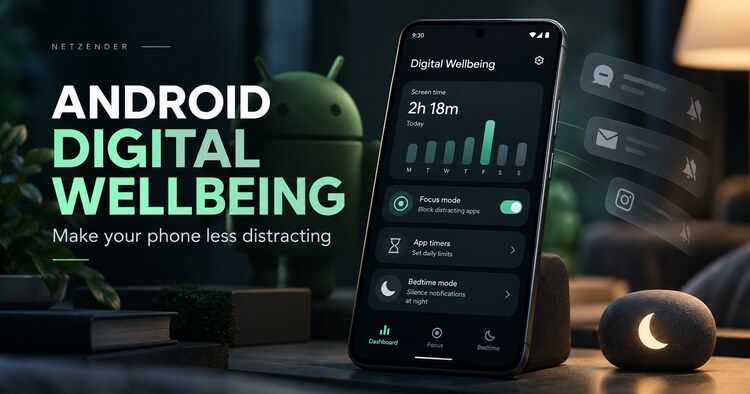
Before changing anything, open Settings > Digital Wellbeing & parental controls.
On supported Android devices, the dashboard can show information such as:
- screen time;
- which apps were used;
- how often the phone was unlocked;
- notification counts.
The goal is not to feel guilty about a number. The goal is to identify patterns.
Ask which apps are intentional tools and which ones you open almost automatically.
Use App Timers for the Apps That Expand to Fill Time
Android lets you set a daily timer for selected apps.
When the limit is reached, the app closes and its icon is dimmed until the timer resets or you change the limit.
Timers work best for applications where your usage repeatedly exceeds your intention, such as:
- social media;
- short-form video;
- news feeds;
- games;
- shopping apps.
A timer is not an unbreakable wall. Its value comes from creating a pause between impulse and action.
Do Not Put Timers on Everything
If every app has a limit, the system becomes irritating and easy to ignore.
Start with one or two obvious distractions.
Keep tools such as maps, authentication, banking or transportation available unless you have a clear reason to restrict them.
Mindful technology works better when restrictions solve a specific problem.
Use Focus Mode During Work or Study
Focus mode lets you select distracting apps and pause them temporarily.
While Focus mode is active, Android blocks use of those selected apps and suppresses their notifications.
You can turn Focus mode on manually or schedule it.
This is useful for:
- deep work;
- studying;
- meetings;
- writing;
- family time;
- exercise.
Use “Take a Break” Instead of Disabling Focus Completely
Android allows temporary breaks from Focus mode.
This is a useful design choice because real life does not always match a perfect schedule.
If you genuinely need a paused app, take a limited break rather than turning the entire system off and forgetting to restore it.
Schedule Focus Around Repeated Contexts
A scheduled Focus mode is more reliable than depending on motivation every day.
Examples:
- 09:00–11:00 for concentrated work;
- 14:00–16:00 for project work;
- 18:30–20:00 for dinner and family;
- a recurring class or study block.
The phone then adapts to the context instead of asking you to make the same decision repeatedly.
Use Bedtime Mode to Change the Environment at Night
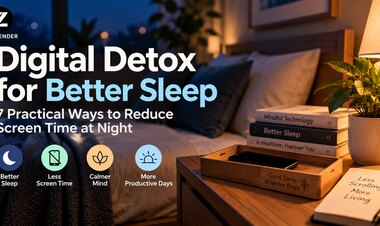
Bedtime mode can reduce stimulation during a scheduled period.
Depending on the device and Android version, current options can include:
- Do Not Disturb;
- grayscale;
- dimming the wallpaper;
- dark theme;
- turning off always-on display;
- a scheduled routine;
- activation while charging during selected hours.
The objective is not to claim that grayscale automatically fixes sleep. The practical benefit is environmental: the phone becomes quieter and visually less demanding at the time you want to wind down.
Combine Bedtime Mode With Charging Placement
Software settings become more effective when paired with physical design.
If your phone charges within arm's reach of the pillow, every notification, late-night search and morning scroll remains frictionless.
Consider charging it:
- across the room;
- on a desk rather than beside the bed;
- outside the bedroom if that works for your household.
You do not need to do this every night. Test whether the extra distance improves your routine.
Reduce Notifications Before Blaming Screen Time
Many phone checks begin with an external interruption rather than a conscious decision.
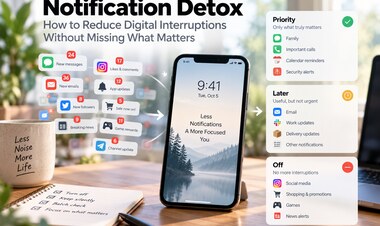
Review notifications by app.
Ask:
- Does this require immediate attention?
- Could I check it when I choose?
- Does this app need sound, vibration and a lock-screen banner?
Removing low-value notifications can reduce distraction without limiting the app itself.
Use Do Not Disturb for Communication Boundaries
Do Not Disturb is useful when you still need the phone but want tighter interruption rules.
You can allow selected people, calls or categories while silencing less important alerts.
This can be more practical than airplane mode when you need to remain reachable for family or urgent work.
Pixel Users Can Use Heads Up
On supported Pixel devices, Digital Wellbeing includes Heads Up.
It can remind you to look up from the phone while walking.
This feature is not a replacement for paying attention to traffic or surroundings. Think of it as a small behavioral prompt when the device detects a context where screen attention may be unhelpful.
Create a Home Screen That Reflects Priorities
Digital wellbeing is not limited to the Digital Wellbeing menu.
Your home screen is an attention interface.
Consider removing high-distraction apps from the first page while keeping intentional tools visible.
You do not have to uninstall an app to make opening it slightly less automatic.
Use Search Instead of Icon Habit
One useful experiment is to remove distracting app icons from your main home screen and open those apps only through search.
The extra step is tiny, but it can reveal how often you were opening an app simply because the icon was present.
Design Different Modes for Different Parts of the Day
The same phone does not need to behave identically all day.
You might want:
- work hours with Focus mode;
- normal availability during the afternoon;
- quiet dinner hours;
- Bedtime mode at night.
This is a more realistic approach than trying to maintain one universal restriction.
Do Not Turn Digital Wellbeing Into a Scoreboard
Lower screen time is not automatically better.
Someone may spend hours reading, navigating, working or talking to family on a phone.
The better question is:
Did my technology use support what I intended to do today?
That is closer to the philosophy behind being more present with people.
A Seven-Day Android Reset
- Review your Digital Wellbeing dashboard.
- Choose the two apps that create the most unwanted checking.
- Add reasonable timers.
- Create one scheduled Focus block.
- Disable several low-value notification categories.
- Configure Bedtime mode.
- After seven days, keep only the settings that genuinely helped.
You can find more ideas about intentionally shaping technology use in our Mindful Technology section.
Final Takeaway
A mindful phone is not a phone with every feature disabled.
It is a phone whose behavior changes according to your priorities.
Use Digital Wellbeing data to understand patterns, app timers to add friction, Focus mode to protect important blocks, Bedtime mode to quiet evenings and notification controls to reduce unnecessary demands on your attention.
The objective is not less technology for its own sake. It is more intentional technology.
Netzender Editorial Team