Gemini in Google Maps on Apple CarPlay: How to Use It in 2026
Gemini is rolling out in Google Maps on Apple CarPlay. Learn how to find the button, what voice navigation can do, where it is available, and what's missing.
 Netzender Editorial Team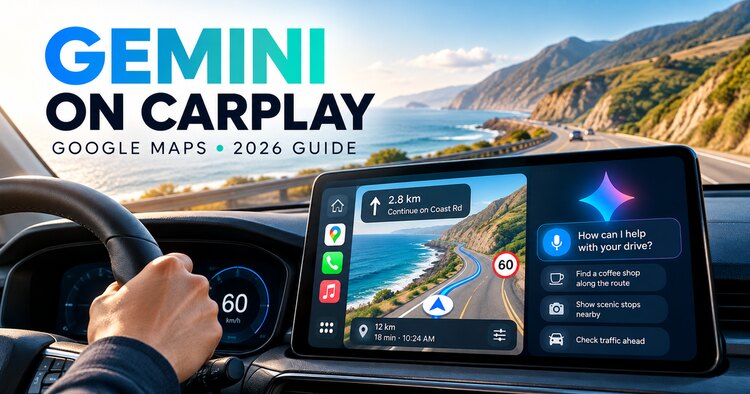
Gemini is arriving inside Google Maps navigation on Apple CarPlay. The rollout, reported on October 21, 2026, brings conversational route assistance to the car's dashboard: drivers can ask follow-up questions about destinations, look for useful stops, request a route that avoids tolls, and report traffic problems by voice. U.S. availability has been reported, while a broader international rollout is underway. The Gemini button may not yet appear for everyone.
For road trips and everyday commuting, the appeal is simple: fewer separate searches and more natural conversation while the map stays in view. But this is a gradual feature release, not a promise that every CarPlay car has it today. Here is what is confirmed, how to check your setup, and what to avoid assuming.
What changed in Google Maps for CarPlay?
Previously, Google Maps on an iPhone could offer voice-assistant experiences without delivering the same conversational controls directly on the CarPlay navigation screen. The October 2026 rollout adds a Gemini entry point inside the CarPlay version of Google Maps during active navigation. According to launch coverage, the icon appears along the right side of the display. You can tap it and make a natural-language request instead of starting a new search.
For example, you could ask for a scenic viewpoint, follow up by asking whether it is worth visiting now, and then request directions that avoid toll roads. These examples illustrate the multi-step interaction; actual suggestions depend on location, route data, language and availability. Google Maps remains the navigation app. Gemini is an assistant within it, not a separate replacement for CarPlay or Siri.
How to try Gemini on Apple CarPlay
- Update Google Maps on your iPhone through the App Store, then connect the phone to a CarPlay-compatible vehicle or head unit.
- Open Google Maps on the CarPlay screen. Start turn-by-turn navigation to a destination. The feature is described as appearing during navigation, so merely opening the map may not reveal it.
- Look for the Gemini icon near the right edge of the navigation interface. If present, tap it to begin a conversation.
- Make a focused request. Try asking for a nearby stop, a different route, or information about a destination. Keep attention on driving and use hands-free interaction where supported.
- Verify the result on the map. Check that the destination, road restrictions and estimated arrival match your needs before following a suggested route.
If the icon does not appear, it does not necessarily mean your car is incompatible. Availability is being rolled out gradually. Neither an exact global country-by-country schedule nor a universal minimum app-version requirement was confirmed in the launch reports reviewed for this guide.
What can Gemini do while navigating?
Ask multi-step questions about places
You can describe a destination without knowing its exact name, then refine the answer in conversation. A question about a viewpoint, park or attraction can lead to a follow-up about timing or route preferences. This may be particularly helpful when visiting an unfamiliar city, though recommendations still deserve a quick check.
Find stops and adjust the route
Instead of repeatedly typing into a search box, drivers can ask about places along the way and request navigation changes such as avoiding toll roads. Treat suggested stops as options, not guarantees of opening hours, availability or suitability. Confirm important details with the destination.
Report road disruptions by voice
Launch coverage also describes conversational reporting of traffic disruptions. That can reduce the need to interact with several on-screen menus. Whether a specific report can be submitted depends on the supported interface and local rollout.
Where is Gemini on CarPlay available?
Coverage published on October 21 confirms a U.S. launch and says the feature is rolling out globally. That does not establish that every country, account, language, vehicle or device already has access. If you are outside the U.S., the most reliable practical test is to update Google Maps, begin navigation on CarPlay, and look for the Gemini control. Do not assume an exact availability date from general statements about global rollout.
There is also a documentation timing issue. At the time this guide was prepared, a Google Maps Help page for iPhone and iPad still said Gemini was not available for CarPlay. More recent October 21 reporting describes the rollout. This apparent contradiction is best understood as a support page that may not yet reflect the newly announced feature, not proof that everyone has received it.
CarPlay vs. Android Auto: Is Personal Intelligence included?
Do not confuse the CarPlay navigation rollout with Google's separate Personal Intelligence announcement. On October 20, Google described Personal Intelligence for Android Auto, with expansion to cars that have Google built-in. With user permission, that feature can use connected Google services such as Gmail, Calendar, Photos and Maps to tailor responses. Google says those connections are optional.
The October 21 CarPlay coverage did not confirm that the same Personal Intelligence integrations are available on CarPlay. Therefore, it would be misleading to promise that CarPlay Gemini can retrieve flight emails, calendar appointments or personal photos in the same way. The two products share the Gemini name, but their announced capabilities and rollout paths differ.
Why is the Gemini button missing?
- Rollout timing: your region or account may not yet be enabled.
- No active navigation: the reported control is part of the navigation experience.
- Outdated app: install the latest available Google Maps update, though updating alone does not guarantee access.
- Interface differences: screen layout and supported functionality can vary by vehicle, device, region and language.
- Confusing phone and dashboard support: seeing Gemini inside Google Maps on the iPhone does not prove the CarPlay interface has received the update.
Avoid reinstalling apps repeatedly or changing region settings based on unverified online workarounds. If the icon is absent, use ordinary Google Maps navigation and check again after future updates.
Five practical voice prompts for a road trip
- “Find a coffee stop along my route that doesn't require a big detour.”
- “Show me a scenic viewpoint near my destination.”
- “Can you route me there without toll roads?”
- “What are useful places to stop before I reach the city?”
- “Report a traffic problem on this road.”
These are illustrative prompts, not a guarantee of identical answers or functionality in every market. Review route changes before proceeding, and follow local road rules. Never let a conversational assistant distract you from the driving task.
Should you switch navigation apps?
Not necessarily. If you already use Google Maps on CarPlay, the update adds convenience without requiring a different navigation app. If you prefer Apple Maps, there is no reason to switch solely because Gemini exists: compare route accuracy, offline needs, privacy preferences and which features actually work in your region. Frequent travelers may appreciate conversational stop-finding; commuters may value familiar route behavior more.
Also consider data usage. Google Maps navigation and live traffic generally depend on connectivity; if you travel internationally, check roaming charges or plan for a travel eSIM. A voice assistant does not eliminate the need for reliable mobile data or a backup plan in areas with weak reception.
Frequently asked questions
Is Gemini on Apple CarPlay free?
The launch coverage does not identify a new CarPlay-specific subscription requirement. Do not assume all future capabilities will be free or that mobile data charges disappear.
Do I need a new car?
The announcement concerns Google Maps running through Apple CarPlay. No new-car-only restriction was established in the sources reviewed, but compatibility and rollout still vary. Start by checking your existing CarPlay setup.
Is Gemini replacing Siri on CarPlay?
No. This is a Google Maps navigation feature, not an announced replacement for Apple's CarPlay system assistant.
Can Gemini on CarPlay read my Gmail or Photos?
That capability was described for the separate Personal Intelligence rollout on Android Auto and cars with Google built-in. It has not been confirmed for this CarPlay release.
When will Gemini reach my country?
Google has indicated a global rollout, but a precise schedule for individual countries was not available in the sources reviewed. Check the feature in the CarPlay navigation interface rather than relying on a speculative date.