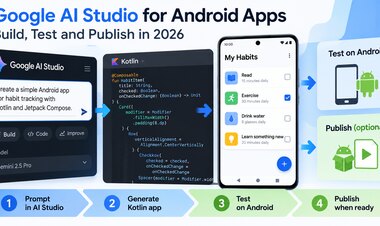
Google AI Studio for Android Apps: Build, Test and Publish in 2026
Learn how Google AI Studio supports Android app creation with Kotlin, what to test before release, and how Google Play publishing really works.
 Netzender Editorial Team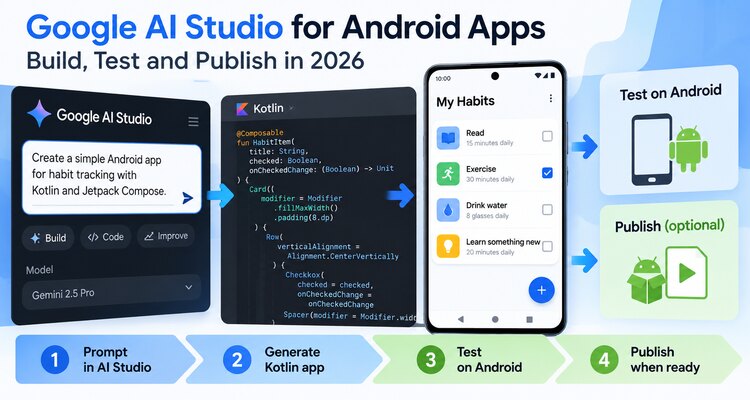
Google AI Studio is becoming more useful for Android developers. At Google I/O 2026, Google announced native Kotlin support in AI Studio, expanding the ways developers can turn ideas into working Android applications. But generating an app is only the beginning. Testing, security, signing, and Google Play distribution remain separate responsibilities.
This guide explains what the new capability means, where AI-assisted development can save time, and how independent developers can move from a prototype to a release-ready Android app without confusing code generation with automatic store approval.
What's new in Google AI Studio for Android?
Google's I/O 2026 developer announcements introduced native Kotlin support for building Android apps in Google AI Studio. The broader AI Studio environment also includes integrations with Firebase and other Google developer tools. For Android creators, the important shift is that AI-assisted app development can target native Android code rather than stopping at a web-based prototype.
This does not mean every prompt produces a production-ready app. Developers still need to inspect generated code, configure the project, test actual device behavior, and confirm that any services or libraries used are appropriate for their release.
What can you build with AI Studio?
A practical starting point is a focused app with a small feature set. Examples include a habit tracker, personal reading list, study timer, travel packing checklist, or a lightweight expense logger. These projects make it easier to evaluate whether the generated code is understandable and maintainable.
More demanding products, such as banking applications, medical tools, or apps handling sensitive personal information, require considerably stronger engineering, security reviews, and regulatory analysis. AI-generated code should not be treated as independently validated for those use cases.
Step 1: Define a small Android app
Begin with a short product brief describing the intended user, the main task, the required screens, and the data that must be stored. For example, a habit tracker might need a daily checklist, a progress screen, and local storage. Explicitly exclude account registration and cloud synchronization from the first version unless they are essential.
A useful development prompt should request Kotlin, an appropriate Android UI architecture, accessible labels, clear state management, and explanations of any external dependencies. Ask the tool to identify assumptions instead of inventing requirements.
Step 2: Review the generated Kotlin project
After code generation, examine the project structure. Check the application ID, Android manifest, Gradle configuration, minimum supported Android version, permissions, and dependency versions. If the UI uses Jetpack Compose, review state handling and navigation rather than judging only the visual preview.
Generated code may compile yet still contain unnecessary permissions, fragile error handling, or outdated dependencies. Keep a version-controlled copy of the project and review changes before accepting another AI-generated revision.
Step 3: Test on real Android devices
A successful preview is not the same as a successful device test. Install a debug build on a physical Android phone or emulator, then verify startup behavior, navigation, screen rotation, accessibility, offline behavior, and error recovery.
Test different screen sizes and Android versions when possible. If the app accesses a camera, location, notifications, or external services, check how permission requests and failures behave. Do not include real credentials in sample builds or screenshots.
Step 4: Secure APIs, data, and permissions
Never embed private API secrets in an Android app and assume they will remain hidden. Client applications can be inspected. Use an appropriate backend for operations that require server-side secrets, and apply authentication, authorization, quotas, and abuse prevention.
Collect only the data needed for the app's purpose. If personal data is transmitted or stored, document that behavior accurately and review Google Play's current data safety and privacy requirements. AI assistance does not transfer responsibility for privacy or security away from the developer.
Step 5: Understand Android testing and Google Play release
There are several distinct milestones. A locally installed debug build proves that the app can run on a test device. An internal testing release allows selected testers to evaluate a distributed build. A public Google Play release requires additional setup and review.
For a conventional Google Play release, developers prepare a signed Android App Bundle, configure the Play Console listing, complete relevant declarations, and satisfy current Google Play policies. Passing internal testing does not guarantee approval for public distribution.
Google AI Studio versus Android Studio
| Task | Google AI Studio | Android Studio |
|---|---|---|
| Starting from a natural-language idea | Useful for AI-assisted generation | Typically requires more direct project setup |
| Inspecting and maintaining Kotlin code | Review generated output carefully | Full native development environment |
| Device debugging and profiling | Not a substitute for full device QA | Dedicated Android debugging and profiling tools |
| Preparing a signed release | Verify the available export workflow | Established build and signing workflow |
| Google Play approval | Not automatic | Not automatic |
These tools are complementary. AI Studio can help accelerate prototyping, while Android Studio and standard Android development practices remain valuable for testing, maintenance, and release engineering.
Seven-point release checklist for indie developers
- Confirm the app solves one clear user problem.
- Review generated Kotlin code and third-party dependencies.
- Remove unused permissions and protect API credentials.
- Test on physical devices and different screen sizes.
- Check accessibility, offline behavior, and crash handling.
- Prepare privacy disclosures, store assets, and a signed release bundle.
- Use an appropriate testing track before requesting a public release.
Can AI Studio publish directly to Google Play?
Do not assume that an AI-generated application is automatically approved for public listing. Google's documented Android publishing process still distinguishes app preparation, testing, upload, review, and public distribution. Product features and regional availability may change, so developers should verify the current workflow in official documentation before making release plans.
Is Google AI Studio free for Android app development?
Pricing depends on the specific AI Studio capabilities, model usage, connected services, and any backend infrastructure. Some workflows may have free allowances, while paid model usage, Firebase services, hosting, or other infrastructure can introduce costs. Check current service pricing and set spending limits before deploying an app that makes repeated API calls.
Final verdict
Google AI Studio's Kotlin support makes native Android prototyping more approachable, but it does not remove the need for software engineering. Independent developers should use AI generation to shorten the first iteration, then invest the saved time in code review, device testing, security, and release preparation.
The best first project is small enough to understand end to end. Once it works reliably, add features gradually and treat Google Play publication as a separate milestone.
Related reading on Netzender
- Google Developer Knowledge API for AI coding assistants
- Google Gemini Agent for Work
- Digital Wellbeing on Android