Notification Detox: How to Reduce Digital Interruptions Without Missing What Matters
A practical notification detox for reducing digital interruptions without becoming unreachable. Learn what to turn off, what to keep, how to use Focus modes, batch communication, and build a quieter smartphone setup.
 Netzender Editorial Team
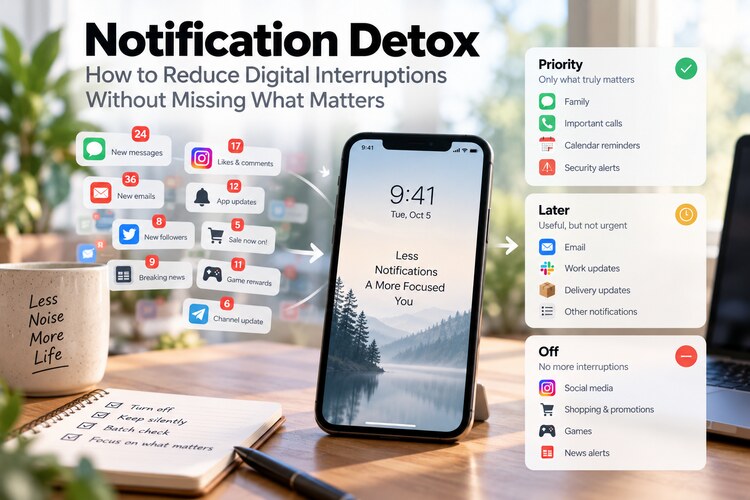
Notifications were designed to help us notice what matters. Somewhere along the way, many of them became a constant stream of interruptions: messages, promotions, app updates, breaking news, social reactions, reminders, badges, vibrations, and alerts competing for the same limited attention.
A notification detox does not mean turning your phone into a silent brick or becoming unreachable. The goal is much more practical: separate genuinely time-sensitive communication from everything that can wait.
Done well, you still receive the messages that matter while dramatically reducing the number of times your attention is pulled away from what you intended to do.
Last reviewed: October 2026.
What Is a Notification Detox?
A notification detox is a deliberate reset of which apps are allowed to interrupt you, how they are allowed to interrupt you, and when those interruptions are permitted.
It is different from deleting social media or abandoning your smartphone. You can keep the same apps and still create a much quieter digital environment.
The basic idea is to divide notifications into three groups:
- Immediate: information that may require action now.
- Useful but not urgent: information you want to see later.
- Unnecessary: information that never needed to interrupt you in the first place.
Most people discover that far fewer apps belong in the first category than they assumed.
Why Notifications Feel More Disruptive Than They Look
The cost of a notification is not limited to the second it takes to dismiss it.
An alert can break concentration, create curiosity, trigger a quick app check, and lead into an entirely different activity. Even when you do not open the notification, part of your attention may shift toward wondering what happened.
This is why a phone can feel distracting even when total screen time does not look extreme. The problem may be fragmentation rather than duration.
If you already struggle to protect longer periods of uninterrupted work, our guide to building a focus system explains how to structure the rest of your day around protected attention.
Step 1: Audit What Is Currently Allowed to Interrupt You
Before changing anything, look at the apps currently permitted to send notifications.
Do not judge them by whether the app itself is useful. Judge them by a different question:
Does this app need permission to interrupt me whenever it wants?
A banking app may be useful, but not every promotion from the bank is urgent. A messaging app may be essential, but group-chat reactions may not deserve immediate attention. A shopping app can be useful without being allowed to announce every sale.
Go through your list app by app and assign one of these labels:
- Keep immediate.
- Keep silently.
- Check manually.
- Turn off completely.
Step 2: Prioritize People Before Apps
One of the best ways to simplify notifications is to think about who needs to reach you rather than which apps should have unrestricted access.
For example, you may want immediate contact from:
- close family;
- a partner;
- your children's school or caregiver;
- a small number of important colleagues;
- critical service providers;
- emergency or security alerts.
That does not require allowing every message from every conversation to interrupt you.
Modern phones provide ways to prioritize selected people through favorites, priority contacts, Focus modes, Do Not Disturb exceptions, or similar controls. Use those features to create a small emergency lane through an otherwise quieter system.
Step 3: Turn Off the Notifications That Should Never Have Been Notifications
This is usually the highest-impact step.
Consider disabling alerts from categories such as:
- shopping promotions;
- food delivery promotions;
- game rewards;
- social likes and reactions;
- suggested posts;
- recommended videos;
- app feature announcements;
- routine news alerts;
- nonessential badges;
- marketing messages from apps you already check voluntarily.
The important distinction is that you are not necessarily removing access to the information. You are removing the app's ability to decide when you should look at it.
Step 4: Create a Silent Notification Layer
Not every notification needs to disappear completely.
Some information is useful when you intentionally check your phone but does not deserve sound, vibration, or a lock-screen interruption.
This middle layer works well for:
- package updates;
- calendar changes that are not imminent;
- nonurgent email;
- community messages;
- project updates;
- fitness summaries;
- low-priority work tools.
Where your device allows it, keep these notifications in the notification center or a scheduled summary while removing sound, vibration, banners, and lock-screen visibility.
This preserves information without giving every app equal access to your attention.
Step 5: Remove Badges That Create Unnecessary Pressure
Notification badges deserve special attention because they can keep asking for action long after the original alert appeared.
A red number on an icon turns an app into an unfinished task.
That can be useful for a small number of genuinely actionable apps. But for social networks, shopping apps, news apps, entertainment services, and many group-chat systems, badges often create more pressure than value.
Try removing badges from apps you prefer to check on your own schedule.
Step 6: Batch Communication Instead of Monitoring It Continuously
The opposite of constant notification checking is not ignoring people all day. It is checking communication deliberately.
For example, you might check:
- email at a few planned times;
- team chat after completing a focus block;
- news once or twice a day;
- social media during a chosen break;
- low-priority messages when transitioning between tasks.
Batching lets you process several items while your brain is already in communication mode instead of repeatedly switching between communication and focused work.
Step 7: Use Focus Modes for Different Parts of the Day
A single notification configuration does not need to apply twenty-four hours a day.
You can create different interruption rules for different contexts.
| Context | Allow | Reduce |
|---|---|---|
| Deep work | Priority people and critical calls | Email, social, news, most work chat |
| Meetings | Calendar and emergency contacts | Everything unrelated to the meeting |
| Family time | Family and essential communication | Most work notifications |
| Sleep | Emergency exceptions | Almost everything else |
| Personal admin | Useful operational notifications | Entertainment and promotional alerts |
Android users can also use built-in Digital Wellbeing tools to reduce distractions. Our guide to making an Android phone less distracting walks through that approach in more detail.
Step 8: Make the Home Screen Less Reactive
Notifications are only one source of interruption. App placement matters too.
If every high-stimulation app is visible the moment you unlock your phone, turning off notifications may simply shift the trigger from an alert to an icon.
Consider keeping the first screen limited to tools you intentionally use:
- calendar;
- maps;
- camera;
- notes;
- authenticator;
- weather;
- task manager;
- communication apps you genuinely need.
Move entertainment, shopping, social, and news apps away from the first screen or into folders that require a deliberate choice to open.
Step 9: Treat Email as an Inbox, Not an Alarm System
Email is one of the easiest places to confuse availability with urgency.
For many people, every incoming message produces a notification even though very few emails need an immediate response.
A quieter configuration is to:
- disable notifications for routine email;
- keep alerts only for a truly important account if necessary;
- check inboxes at deliberate times;
- use filters and priority rules for important senders;
- unsubscribe from recurring mail you consistently ignore.
This turns email back into a tool you open instead of a system that repeatedly summons you.
Step 10: Be Aggressive With Group Chats
Group conversations can generate dozens or hundreds of notifications without producing dozens or hundreds of items that require your attention.
Muting a group is not the same as leaving it.
You can remain part of family, community, hobby, and work groups while checking them when convenient. Reserve immediate notifications for conversations where delayed responses would actually create a problem.
A Simple 7-Day Notification Detox
You do not need to redesign everything at once. A one-week reset is easier to maintain.
| Day | Action |
|---|---|
| Day 1 | Turn off obvious promotional and entertainment notifications. |
| Day 2 | Remove unnecessary badges. |
| Day 3 | Mute nonessential group chats. |
| Day 4 | Create priority contacts and emergency exceptions. |
| Day 5 | Build a focus mode for concentrated work. |
| Day 6 | Move distracting apps away from the first home screen. |
| Day 7 | Review what you genuinely missed and restore only what proved useful. |
The final day is important. A notification detox is not successful because you disabled the most alerts. It is successful if the remaining system matches your actual life.
What Should You Not Turn Off?
Minimalism becomes counterproductive when it makes life less reliable.
Depending on your situation, you may want to retain immediate alerts for:
- security warnings;
- banking fraud alerts;
- authentication requests;
- calendar reminders for important appointments;
- transport or travel changes;
- school or caregiver messages;
- home-security systems;
- critical workplace systems when you are on call;
- emergency alerts.
The goal is not silence for its own sake. The goal is a better signal-to-noise ratio.
How to Know Whether the Detox Is Working
Do not judge the change only by screen-time numbers.
Instead, ask:
- Am I unlocking my phone less automatically?
- Can I work longer without interruption?
- Do I feel less compelled to clear badges?
- Am I still reachable by the people who matter?
- Have I missed anything genuinely important?
- Do I open apps because I choose to, rather than because they summoned me?
Those questions measure the real objective: greater control over attention.
Notification Detox vs. Digital Minimalism
A notification detox is narrower than digital minimalism.
Notification detox asks:
What deserves permission to interrupt me?
Digital minimalism asks a broader question:
Which technologies deserve a place in my life at all, and what role should they play?
If the notification reset helps but you still feel digitally overloaded, continue with our 30-day digital minimalism reset.
Frequently Asked Questions
Should I turn off all notifications?
Usually no. Keep notifications for genuinely time-sensitive communication and important system alerts. The goal is to reduce unnecessary interruptions, not make yourself unreachable.
Which notifications should I disable first?
Promotional alerts, social reactions, suggested content, game notifications, shopping offers, routine news alerts, and nonessential group-chat notifications are good first candidates.
Is Do Not Disturb enough?
It is useful, but a permanent notification cleanup is often more effective because it reduces noise even outside Do Not Disturb or Focus periods.
How often should I review notification settings?
A quick review every few months is useful, especially after installing new apps. Many apps request notification access during setup even when immediate alerts are not essential to their function.
Will a notification detox reduce screen time?
It may, but that is not the only goal. The more important benefit is reducing unplanned attention shifts and making phone use more intentional.
Final Thought: Your Phone Should Wait for You
A useful smartphone should help you act when you choose to act. It should not require you to react to every event happening inside every app.
Start by protecting the small number of notifications that genuinely matter. Silence the useful-but-nonurgent ones. Remove the alerts that provide no meaningful value.
Then pay attention to what changes.
The goal is not to use less technology simply for the sake of using less technology. It is to create a digital environment where you decide what gets your attention and when.