Google Gemini Privacy Settings 2026: Control Chat History and AI Training
Google's November 2026 Gemini privacy update separates chat history from generative AI training. Learn how the controls work, what is retained, and how to review your settings.
 Netzender Editorial Team
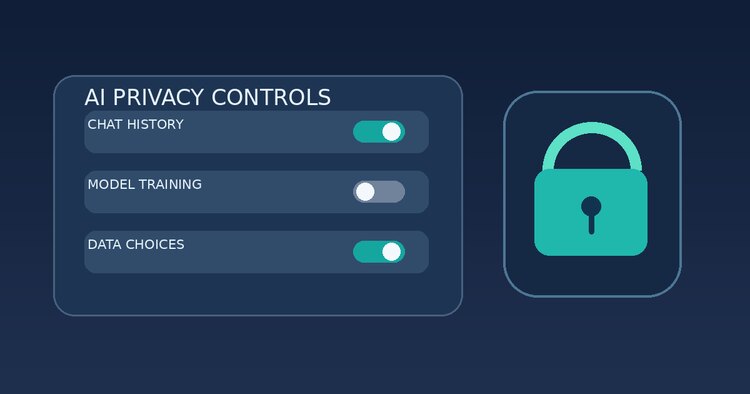
Quick answer: Google announced new Gemini app privacy controls on November 16, 2026. The key change is that users will be able to keep their Gemini conversation history while opting out of having that history used to train generative AI models. That separates two choices that are easy to confuse: whether you can revisit a conversation and whether Google can use it for model training. The changes are rolling out globally over the coming weeks, so your account may not show the same controls immediately.
Updated November 18, 2026. This guide covers personal Gemini app accounts and describes Google's announced rollout, not a hands-on test of every regional interface. For work or school accounts, check with your Google Workspace administrator.
What changed in Gemini privacy settings in November 2026?
In its November 16 announcement, Google said it is separating the decision to retain Gemini chat history from the decision to allow that history to train generative AI models. Previously, users often treated the history switch as the primary privacy decision. The new design aims to give people a more useful middle ground: preserve conversations for reference without agreeing to generative-model training based on that history.
Google also announced a retention change for people who turn the new History setting off. Future conversations may be stored for around two months to respond to users, process feedback and help protect Google and the public. That does not mean those conversations appear in a visible history list or automatically become training material. The company says the new controls will roll out globally in the coming weeks, not all at once.
Three different privacy questions you should ask
1. Is my chat saved in a history I can revisit?
Chat history is the record you can return to when you want to continue a project, find an answer or revisit a document. Keeping it is convenient, particularly when Gemini is used for research, learning or planning. A saved conversation can still contain sensitive information, however, so retaining everything indefinitely may not be desirable.
2. Can my chat be used to train generative AI?
Training is a separate use of data. Google's new controls are intended to let you keep your history without allowing that history to train generative AI models. The precise label of the switch can vary as the rollout progresses. Do not assume that turning off training deletes your conversations or stops every kind of data processing. Read the explanation next to the setting before you save your choice.
3. How long does Google retain data for safety and operations?
Retention refers to how long data may remain available for operational, security or legal purposes, even when it is not displayed as ordinary history. Google's updated Gemini Apps Privacy Hub says temporary chats and chats created with History off are retained with your account for around two months. Google says they help deliver responses and protect users and the service. This is different from an automatic promise to erase every copy the moment you disable a setting.
Gemini history versus training: a practical comparison
| Choice | What it primarily controls | What it does not guarantee |
|---|---|---|
| Keep history on | Whether conversations remain available to revisit | That chats are never processed for other purposes |
| Opt out of generative AI training | Whether future history is used to train generative AI models under that setting | Immediate deletion of history or all operational retention |
| Turn History off | Whether future conversations are kept in the normal history experience | Zero short-term retention for safety and service operation |
| Delete past activity | Removal of selected activity from the account's activity view and associated deletion process | Deletion of previously de-identified reviewer copies or data in other Google services |
This comparison is deliberately conservative. Google's help documentation also describes exceptions around feedback, service improvement and human review. Review the current privacy disclosures rather than relying on a screenshot from an earlier version of the app.
How to check your Gemini privacy controls
Because the November controls are being introduced gradually, the safest instructions start with the existing account-management route. On a computer, sign in to Gemini, open Settings & help, and choose Activity. You can also open Gemini Apps Activity directly while signed in. Google's activity-management guide documents this route.
- Confirm the account. Check which Google account is signed in, especially if you have personal and work accounts.
- Review History or Activity. Read the description of the current history setting; the name and layout may change during rollout.
- Look for a separate training choice. If the new option appears, review whether you want saved history used for generative AI training.
- Check retention and auto-delete. Choose an appropriate deletion period if the interface offers one, and remove individual conversations you no longer need.
- Revisit the settings later. If you cannot find the newly announced control, do not assume it is unavailable permanently; the rollout is gradual.
Important: these steps identify where to review privacy controls. They do not claim that every account already has a particular new button, toggle name or screen arrangement.
What happens if you turn Gemini History off?
Google's November announcement says future chats will be saved for around two months when the new History setting is off. The company lists responding to users, handling feedback and safety protection among the reasons. This is a retention period, not a statement that the conversation will be displayed in your normal history for two months.
You may see older Google help pages or search snippets saying conversations are retained for 72 hours when activity is off. Those instructions describe the earlier Keep Activity system and can remain visible while the November changes are being rolled out. The newer Google announcement and updated Privacy Hub describe the around-two-month approach. For the settings that actually apply to your account, read the notice shown in your app at the time you change them.
Another distinction matters: turning History off does not necessarily erase chats already saved under a previous setting. If your goal is to remove past activity, review and delete it separately. Likewise, turning a training option off should not be presented as retroactively withdrawing all data that has already been reviewed or incorporated into earlier processes.
How to review, delete and auto-delete Gemini conversations
For personal accounts, Google's official activity instructions explain how to open Gemini Apps Activity, select a conversation or date range, and delete it. Depending on the version of the interface, options may include deleting the last hour, the last day, a custom period or all time. Review the confirmation before proceeding because deletion can remove information you intended to keep.
Google's documentation has described automatic deletion options such as three, 18 or 36 months, plus a choice not to auto-delete. These options may evolve with the new controls. A sensible practice is to retain only what has a continuing purpose, export important notes to a separate document if appropriate, and delete abandoned prompts that contain unnecessary personal details.
Deleting Gemini activity does not automatically delete content in Gmail, Google Drive, Maps or another connected service. Privacy settings for those products are managed separately. If you used Gemini with a connected app, check the original app's retention and sharing settings too.
Can people or reviewers still access Gemini conversations?
Google's privacy materials explain that some information can be reviewed by people or service providers for safety and service improvement. They also describe data separated from an account that may be retained for longer periods, including certain reviewed material. Therefore, the responsible answer to “Is Gemini completely private?” is no consumer AI assistant should be treated as a confidential vault by default.
Do not paste passwords, authentication codes, unredacted medical records, client secrets, confidential contracts or customer databases into a personal AI chat unless your organization has approved that specific workflow and its data-handling terms. For everyday tasks, replace real names and account numbers with placeholders. The privacy setting is one layer of protection, not a substitute for data minimization.
Personal Gemini accounts versus Google Workspace
Google's activity-management instructions distinguish personal accounts from work and school accounts. A Workspace administrator may control which features and data settings are available to employees or students. If you use Gemini for client work, do not assume a screenshot from a personal Gmail account describes your organization's configuration. Check your organization's policy and the documentation for the particular Workspace product or plan.
Small businesses should also think beyond one toggle. Decide which types of data employees may submit to AI tools, how long prompts should be kept, and who can share outputs externally. A simple written policy is more useful than a blanket statement that all AI tools are either safe or unsafe.
A five-minute Gemini privacy checklist
- Verify you are signed in to the intended Google account.
- Open Gemini Activity and read the current History and training descriptions.
- Opt out of generative AI training if that matches your preferences and the option is available.
- Review saved chats and delete conversations you no longer need.
- Check auto-delete, connected apps and sharing settings separately.
- Use placeholders instead of sensitive personal or client data.
- Repeat the review after Google's rollout reaches your account.
Privacy controls work best alongside practical digital habits. If you are also trying to reduce the amount of personal information you share during busy periods, see our guide to holiday digital boundaries for family and work. For a broader approach to attention and app use, explore building a focus system that protects your attention.
Frequently asked questions
Can I save Gemini chats without allowing AI training?
That is the main purpose of the new controls Google announced on November 16, 2026. Availability depends on rollout, so check your account rather than assuming the new option is already visible.
Does turning off Gemini History immediately delete everything?
No. Turning off future history and deleting previously saved activity are different actions. Google's updated guidance also describes around two months of operational retention for chats when History is off.
Why do some pages still say 72 hours?
Some earlier Keep Activity documentation refers to 72-hour retention. Google's November 2026 announcement describes a new approach with retention of around two months. During rollout, prioritize the current account notice and updated official Privacy Hub.
Does opting out of training prevent every form of processing?
No. Google can still process information to answer your request, operate the service, address feedback and protect users. Read the product-specific privacy disclosures for details and exceptions.
Can I delete only one conversation?
Google's Gemini Apps Activity help describes deleting individual items as well as broader time ranges. Options may vary by account and interface version.
Do these controls apply to Gemini in a work account?
Not necessarily in the same way. Work and school accounts may be subject to administrator controls and separate terms. Ask your administrator which Gemini product and policies apply.
The bottom line
Google's November 2026 change makes an important distinction more visible: keeping useful chat history is not the same decision as consenting to generative AI training. But it is not a promise of zero retention, zero human review or automatic deletion across Google products. Review your account's actual controls, minimize sensitive data in prompts and return to the settings as the rollout continues.
Primary references: Google's November 16 announcement; Gemini Apps Privacy Hub; Manage and delete Gemini Apps activity.